In this article, I’d like to explain how to implement one of the more common and simple methods of securing the ELK Stack — deploying nginx in front of Elasticsearch and Kibana to act as a reverse proxy.
It is not necessary to change ELK default ports in this case.
You can use this for any other service
Installing and configuring Nginx
To start the process of adding authentication, we’ll install nginx:
sudo apt install nginxWe’re also going to install apache2-utils to help us create the accounts used with basic authentication:
sudo apt install apache2-utilsNext, we’ll create a user account for the basic authentication (I chose kibanauser, but you can of course replace this with any user account you’d like):
sudo htpasswd -c /etc/nginx/.htpasswd kibanauserAfter hitting enter, we’ll be prompted to enter and verify a password for the user.
New password:
Re-type new password:
Adding password for user kibanauserNext, we’re going to create an nginx configuration file:
sudo nano /etc/nginx/sites-enabled/kibanaEnter the following configuration:
*Change localhost with your local IP address
upstream elasticsearch {
server localhost:65100;
keepalive 15;
}
upstream kibana {
server localhost:65200;
keepalive 15;
}

server {
listen 8881;
location / {
auth_basic "Restricted Access";
auth_basic_user_file /etc/nginx/.htpasswd;
proxy_pass http://elasticsearch;
proxy_redirect off;
proxy_buffering off;
proxy_http_version 1.1;
proxy_set_header Connection "Keep-Alive";
proxy_set_header Proxy-Connection "Keep-Alive";
}
}
server {
listen 8882;
location / {
auth_basic "Restricted Access";
auth_basic_user_file /etc/nginx/.htpasswd;
proxy_pass http://kibana;
proxy_redirect off;
proxy_buffering off;
proxy_http_version 1.1;
proxy_set_header Connection "Keep-Alive";
proxy_set_header Proxy-Connection "Keep-Alive";
}
}We are asking nginx to listen and redirect to port 8881 for connections to Elasticsearch and port 8882 for connections to Kibana, using basic authentication with the account we created with htpasswd.
That’s all there is to it.
Restart nginx and restart Kibana:
sudo service nginx restartVerifying authentication
Both Elasticsearch and Kibana are now gated with basic authentication. We can verify this using some cURL commands.
For Elasticsearch, use:
curl --verbose http://kibanauser:1234@127.0.0.1:8881You should see the following output:
* Rebuilt URL to: http://kibanauser:1234@127.0.0.1:8881/
*   Trying 127.0.0.1...
* Connected to 127.0.0.1 (127.0.0.1) port 8881 (#0)
* Server auth using Basic with user 'kibanauser'
> GET / HTTP/1.1
> Host: 127.0.0.1:8881
> Authorization: Basic a2liYW5hdXNlcjoxMjM0
> User-Agent: curl/7.47.0
> Accept: */*
>
< HTTP/1.1 200 OK
< Server: nginx/1.10.3 (Ubuntu)
< Date: Sun, 10 Feb 2019 11:14:13 GMT
< Content-Type: application/json; charset=UTF-8
< Content-Length: 493
< Connection: keep-alive
<
{
  "name" : "9qenDRz",
  "cluster_name" : "elasticsearch",
  "cluster_uuid" : "rbfDdSWaRmyrh9kOSVNwyg",
  "version" : {
    "number" : "6.6.0",
    "build_flavor" : "default",
    "build_type" : "deb",
    "build_hash" : "a9861f4",
    "build_date" : "2019-01-24T11:27:09.439740Z",
    "build_snapshot" : false,
    "lucene_version" : "7.6.0",
    "minimum_wire_compatibility_version" : "5.6.0",
    "minimum_index_compatibility_version" : "5.0.0"
  },
  "tagline" : "You Know, for Search"
}
* Connection #0 to host 127.0.0.1 left intactFor Kibana:
curl --verbose http://kibanauser:1234@127.0.0.1:8882And the output:
* Rebuilt URL to: http://kibanauser:1234@127.0.0.1:8882/
*   Trying 127.0.0.1...
* Connected to 127.0.0.1 (127.0.0.1) port 8882 (#0)
* Server auth using Basic with user 'kibanauser'
> GET / HTTP/1.1
> Host: 127.0.0.1:8882
> Authorization: Basic a2liYW5hdXNlcjoxMjM0
> User-Agent: curl/7.47.0
> Accept: */*
>
< HTTP/1.1 302 Found
< Server: nginx/1.10.3 (Ubuntu)
< Date: Sun, 10 Feb 2019 11:15:43 GMT
< Content-Type: text/html; charset=utf-8
< Content-Length: 0
< Connection: keep-alive
< location: /app/kibana
< kbn-name: kibana
< kbn-xpack-sig: 4081d734fcd0e7d12f32aeb71f111a2d
< cache-control: no-cache
<
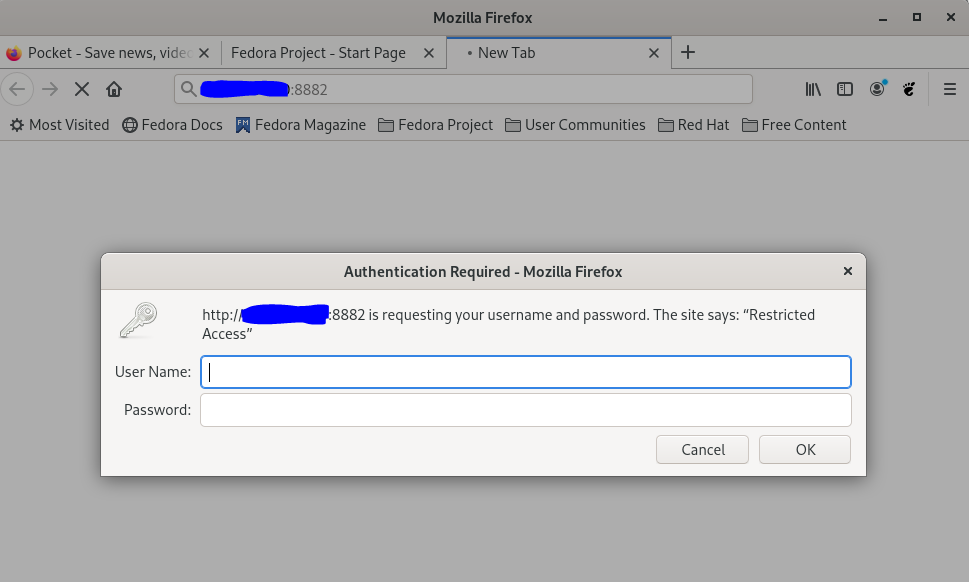
* Connection #0 to host 127.0.0.1 left intactOpening up our browser at http://localhost:8882 displays an authentication dialog: